
Cover what you did not
mean to share.
Faces, license plates, whatever else ended up in the frame. The rest of the set handles what comes just before you post — a file too big for the upload limit, a format the other end will not take, a stack of photos that has to arrive as one PDF. Pick a tool and the work happens in this browser tab.

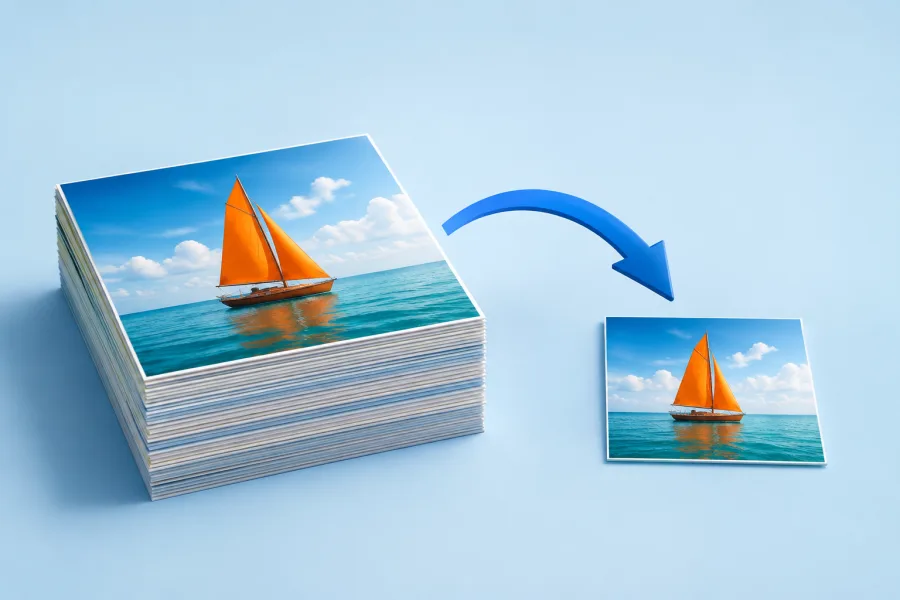
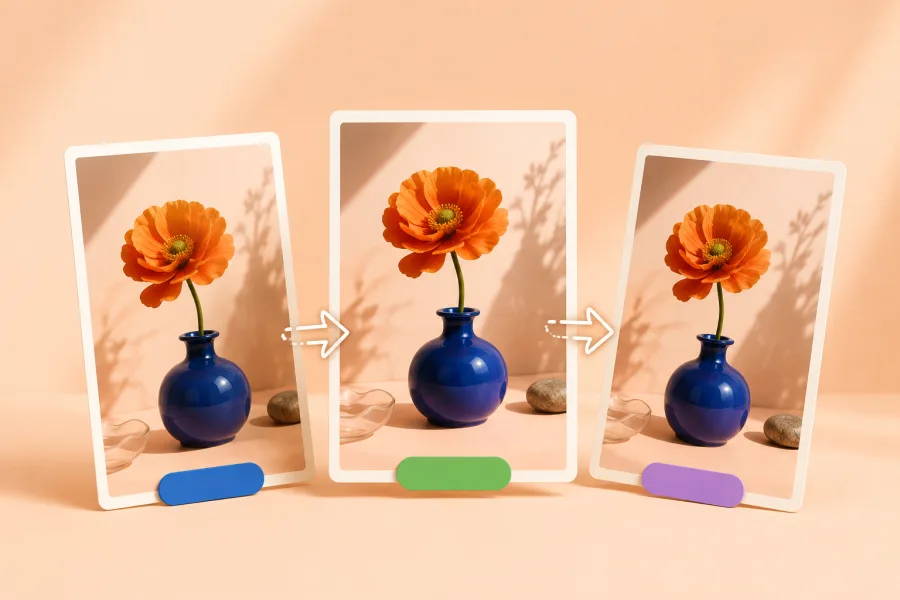

The small pictures illustrate what each tool does. Your result depends on your photo and your settings.
Your photo stays in this browser
No account, no install, no upload. The photo you choose is opened by this tab and never sent anywhere. You can check that yourself: open your browser's developer tools, switch to the Network panel, and run a photo through a tool — you will see the page's own files load, and nothing carrying your image going out.
Which covering to use
The covering tools here all hide part of a photo; they differ in what the covering leaves behind. Blur mixes the colours inside the area, which keeps the mood of the photo but can look like a focus mistake. Mosaic flattens the area into coarse squares, which makes the edit unmistakable — the right choice when the covering itself needs to be visible. Solid fill, available in the plate tool, replaces the area with one flat colour and leaves nothing underneath.
The rule of thumb: for a face in a photo you still want to look natural, blur. For a face in something official or public, mosaic. For anything made of text — a plate, a name badge, an address, an account number — solid, because letters keep their outline through a blur or a mosaic far more stubbornly than a face does.
What automatic detection will and will not find
The two face tools run a detector over your photo when you open it. It is built for front-facing faces at a reasonable size, and it is honest about its limits: a head turned well to the side, a face only a few pixels across in a large group, or a face half cut off at the frame edge will be skipped. No setting changes that.
So every tool here lets you place areas by hand, and that is not a fallback — it is how you cover the things detection was never looking for. ID badges, documents on a desk, a switched-on screen, a house number, an address label on a parcel. Tap an empty part of the photo and drag.
Before you save, count the people in the photo against the areas you have placed, then zoom in on the result. It is much easier to catch a missed face here than after the picture is posted.
What the saved file carries
Each tool redraws your photo onto a canvas in the browser and exports that. One consequence is that the original file's metadata does not come along — no capture location, no camera or phone model — so the file you download is cleaner in that respect than the one you started with.
The other consequence is worth being clear about: covering is not erasing. The saved image contains the blur, the mosaic or the fill as pixels, and your untouched original is still sitting on your device. When you attach the photo, check the filename — the tools add a suffix such as -face-blur so you can tell the two apart at a glance.